Version Control with Git: Part 2
In the first Git module, we learned to work independently with Git repositories on the command line. In this second part, we will focus on using GitHub to host our repositories and collaborate with others. This module will also prepare you for your first homework assignment, where you’ll submit your Python exercises to GitHub.
Link a Local Repository to GitHub
Version control really comes into its own when we begin to collaborate with other people. We already have most of the machinery we need to do this; the only thing missing is to copy changes from one repository to another.
Systems like Git allow us to move work between any two repositories. In practice, though, it’s easiest to use one copy as a central hub, and to keep it on the web rather than on someone’s laptop. Most programmers use hosting services like GitHub, Bitbucket, or GitLab to hold those main copies.
Let’s start by sharing the changes we’ve made to our current project with the world. Log in to GitHub, then click on the icon in the top right corner to create a new repository:
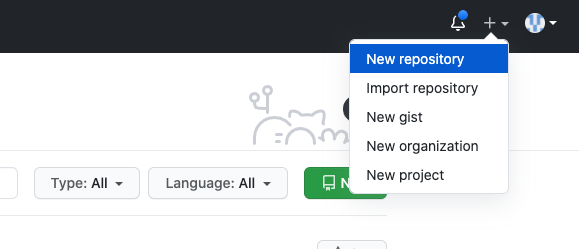
Click ‘New repository’.
As soon as the repository is created, GitHub displays a page with a URL and some
information on how to configure your local repository. Provide a name for your
new repository like my-first-git-repo (or whatever you want, it doesn’t have to
match the name of your local folder).
Note that our local repository still contains our earlier work on python_test_1.py
and other files, but the remote repository on GitHub doesn’t contain any memory
of python_test_1.py yet. The next step is to connect and sync the two repositories.
We do this by making the GitHub repository a “remote” for the local repository. The
home page of the repository on GitHub includes the string we need to identify it:
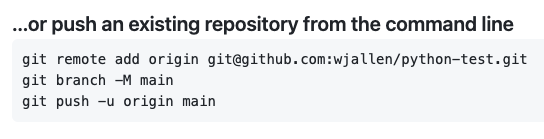
GitHub gives us instructions for pushing an existing repository.
Before we can link our local repository to GitHub, we need to set up SSH keys for authentication. GitHub requires SSH keys to authenticate when pushing code from the command line (this is the same type of SSH key we used to connect VSCode to our VMs).
Setting Up SSH Keys for GitHub
First, check if you already have an SSH key on your VM:
[mbs-337]$ ls -la ~/.ssh/
If you see files like id_ed25519.pub or id_rsa.pub, you already have an
SSH key. If not, generate a new one:
[mbs-337]$ ssh-keygen -t ed25519 -C "your_email@example.com"
Generating public/private ed25519 key pair.
Enter file in which to save the key (/home/ubuntu/.ssh/id_ed25519): [Press Enter]
Enter passphrase (empty for no passphrase): [Press Enter]
Enter same passphrase again: [Press Enter]
Note
Press Enter three times: once to accept the default file location, and twice to leave the passphrase empty (this makes it easier to use, though less secure).
Now display your public key:
[mbs-337]$ cat ~/.ssh/id_ed25519.pub
ssh-ed25519 AAAAC3NzaC1lZDI1NTE5AAAAIG... your_email@example.com
Copy the entire output (it should start with ssh-ed25519 and end with your
email address).
Next, add this key to your GitHub account:
Go to GitHub.com and log in
Click your profile picture in the top right corner
Click Settings
In the left sidebar, click SSH and GPG keys
Click New SSH key
In the “Title” field, enter a descriptive name like “mbs-337-vm”
For “Key type”, select Authentication Key
In the “Key” field, paste the public key you copied earlier
Click Add SSH key
You may be prompted to enter your GitHub password to confirm.
Linking Your Local Repository to GitHub
Now that SSH keys are set up, we can link our local repository to the one on GitHub. Back on your VM, navigate to your local Git repository and add the remote:
[mbs-337]$ cd ~/mbs-337/my-first-git-repo
[mbs-337]$ git remote add origin git@github.com:kbeavers/my-first-git-repo.git
Attention
Make sure to use the URL for your repository instead of the one listed here.
Verify that the remote was added correctly:
[mbs-337]$ git remote -v
origin  git@github.com:kbeavers/my-first-git-repo.git (fetch)
origin  git@github.com:kbeavers/my-first-git-repo.git (push)
The name origin is a local nickname for your remote repository on GitHub.
We could use something else, but origin is the standard convention.
Pushing Your Code to GitHub
Now that everything is set up, we can push our local changes to GitHub:
[mbs-337]$ git push -u origin main
Warning: Permanently added the ECDSA host key for IP address '140.82.112.4' to the list of known hosts.
Enumerating objects: 6, done.
Counting objects: 100% (6/6), done.
Delta compression using up to 2 threads
Compressing objects: 100% (4/4), done.
Writing objects: 100% (6/6), 551 bytes | 551.00 KiB/s, done.
Total 6 (delta 0), reused 0 (delta 0), pack-reused 0
To github.com:kbeavers/my-first-git-repo.git
 * [new branch]      main -> main
branch 'main' set up to track 'origin/main'.
The -u flag links your local main branch to origin/main, and
now you can simply use git push (instead of git push origin main)
to push your local changes to the main branch of your origin GitHub repo.
Now that the repositories are synced, your development workflow has evolved to
include the git push operation. From here on, if you make changes to your code,
you can expect to follow the changes with the commands:
# Make some edits to "python_test_1.py"
[mbs-337]$ git status
[mbs-337]$ git add python_test_1.py
[mbs-337]$ git commit -m "description of changes"
[mbs-337]$ git push
Clone the Repository
Spend a few minutes browsing the web interface for GitHub. Now, anyone can make a full copy of a repository including all the commit history by performing:
[mbs-337]$ git clone git@github.com:kbeavers/my-first-git-repo.git
Cloning into 'my-first-git-repo'...
remote: Enumerating objects: 9, done.
remote: Counting objects: 100% (9/9), done.
remote: Compressing objects: 100% (7/7), done.
remote: Total 9 (delta 0), reused 9 (delta 0), pack-reused 0 (from 0)
Receiving objects: 100% (9/9), done.
If the repository on GitHub gets ahead of your local repository, i.e. it has some changes in it that someone else pushed from somewhere else, or you pushed from a different machine, then you can try to update your local repository to pull the changes back down.
[mbs-337]$ git remote update    # checks to see if there are updates in the remote
[mbs-337]$ git pull             # pulls those updates down to local
Warning
If you have changes in local files that conflict with the remote repository
(i.e. the repository on GitHub), the git pull will fail and you have
found your way into a “merge conflict”.
Good luck!
Git / Version Control Concepts
Let’s take a quick intermission to learn some important definitions (most of these things can easily be managed in the GitHub web interface):
Fork
A fork is a personal copy of another user’s repository that lives on your account. Forks allow you to freely make changes to a project without affecting the original. Forks remain attached to the original, allowing you to submit a pull request to the original’s author to update with your changes. You can also keep your fork up to date by pulling in updates from the original.
Branch
A branch is a parallel version of a repository. It is contained within the repository, but does not affect the primary or main branch allowing you to work freely without disrupting the “live” version. When you’ve made the changes you want to make, you can merge your branch back into the main branch to publish your changes. For more information, see About branches.
Tag
Git has the ability to tag specific points in history as being important. Typically people use this functionality to mark release points (v1.0, and so on).
Pull Request / Merge Request
Pull requests are proposed changes to a repository submitted by a user and accepted or rejected by a repository’s collaborators. Like issues, pull requests each have their own discussion forum. For more information, see About pull requests.
Collaborating with Others
A public platform like GitHub makes it easier than ever to collaborate with others on the content of a repository. You can have as many local copies of a repository as you want, but there is only one “origin” repository - the repository hosted on GitHub. Other repositories may fall behind the origin, or have changes that are ahead of the origin. A common model for juggling multiple repositories where separate individuals are working on different features is the GitFlow model:
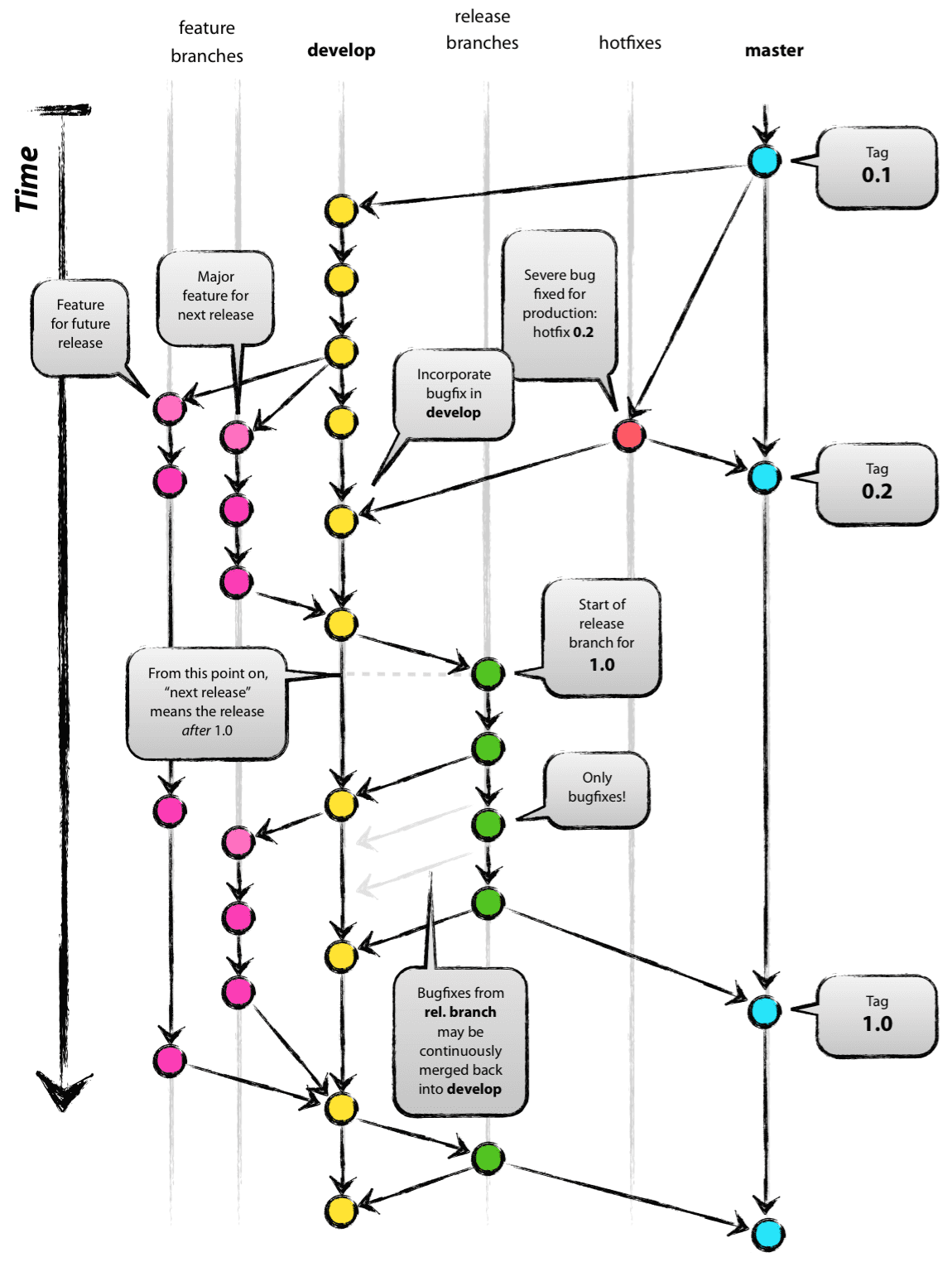
GitFlow model from this blog post, which is an excellent resource for understanding collaborative software development.
EXERCISE
Let’s practice creating a branch and pull request using the GitHub web interface. This is a common workflow for proposing changes to a repository.
Navigate to your repository on GitHub.com
- Create a new branch:
Look for the branch selector dropdown near the top left (it will say “main” or show the current branch name)
Click on it and type a new branch name (e.g.,
add-commentsortest-branch)Press Enter or click “Create branch: add-comments from ‘main’”
GitHub will automatically switch you to this new branch
- Make a change on your new branch:
Click on one of your files (e.g.,
python_test_1.py)Click the pencil icon to edit the file
Add a comment or make a small change (e.g., add
# This is a test comment)Scroll down and click the green “Commit changes” button
Leave the commit message as-is or modify it, then click “Commit changes”
- Create a pull request:
After committing, you should see a yellow banner at the top suggesting you create a pull request. Click the green “Compare & pull request” button
OR navigate to the “Pull requests” tab and click “New pull request”
Make sure the base branch is set to
mainand the compare branch is your new branch (e.g.,add-comments)Review the changes shown in the diff view
Add a title and description for your pull request
Click “Create pull request”
- Merge your pull request:
On the pull request page, click the green “Merge pull request” button
Choose a merge type (see explanation below)
Click “Confirm merge”
Optionally delete the branch after merging (GitHub will offer this option)
Congratulations! You’ve successfully created a branch, made changes, and merged them back into main using pull requests.
When you merge a pull request on GitHub, you’ll see three options for how to merge:
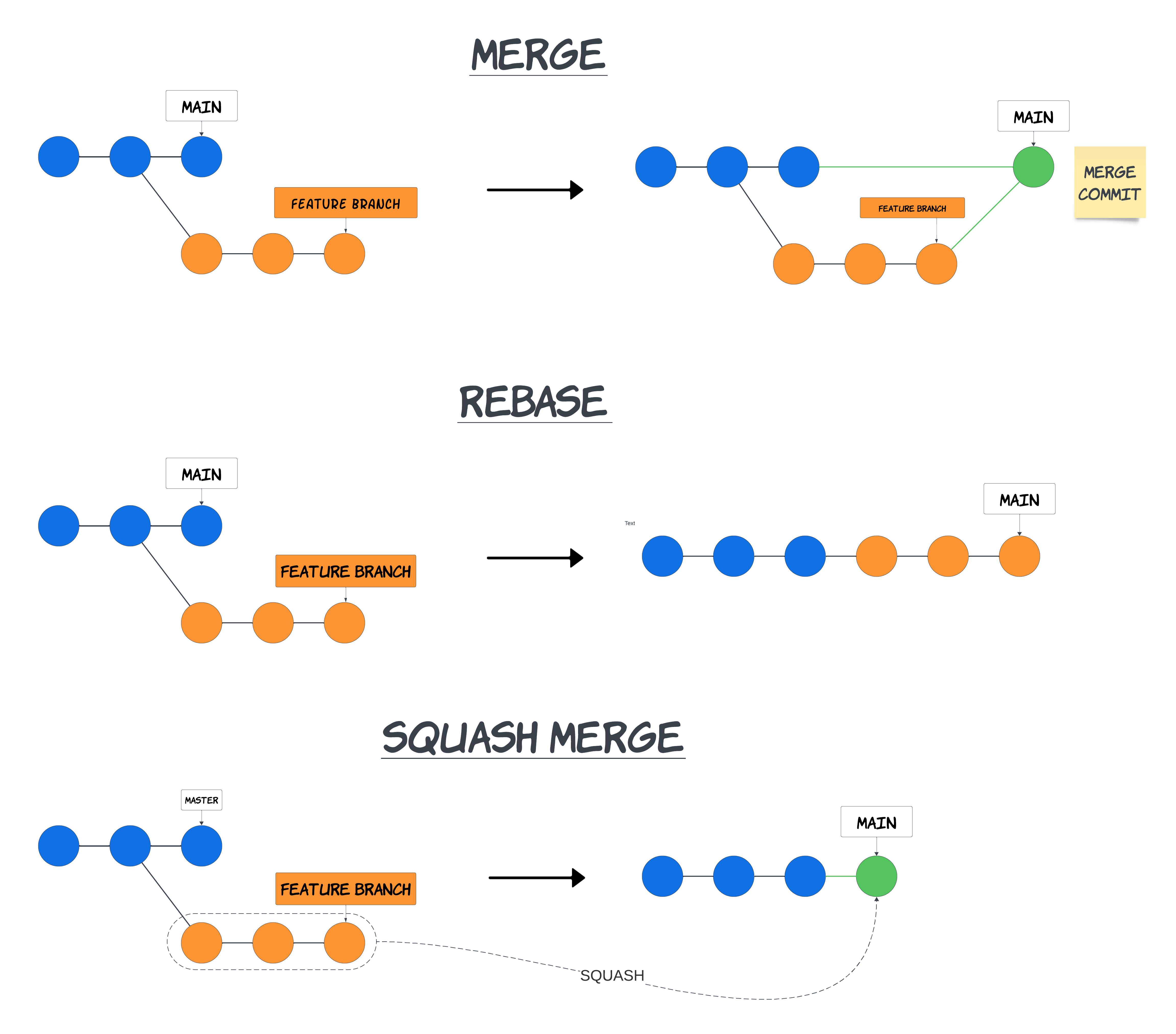
All three methods result in your changes being merged into the main branch. The choice is mostly stylistic and depends on what your team prefers. For this course, any method is fine. More info on the differences here.
EXERCISE
Let’s practice forking a repository and creating a pull request to propose changes back to the original repository. This is how you contribute to projects you don’t own.
- Find a repository to fork:
You can use this repository: https://github.com/kbeavers/mbs-337-forking-demo
- Fork the repository:
Navigate to the repository’s main page on GitHub
Click the “Fork” button in the top right corner
GitHub will create a copy of the repository in your account
Make a change to your fork:
- Option A: Using the GitHub web interface (easiest for this exercise):
Navigate to your fork (it will be at
github.com/YOUR_USERNAME/repo-name)Click “Add file” → “Create new file”
Name it
YOUR_NAME.txtAdd some content (e.g., “This file was added by [Your Name]”)
Scroll down and click “Commit new file”
- Option B: Using Git commands (if you prefer the command line):
Clone your fork:
git clone git@github.com:YOUR_USERNAME/repo-name.gitCreate a new file, add it, commit, and push:
[mbs-337]$ cd mbs-337-forking-demo
[mbs-337]$ echo "This file was added by Kelsey" > Kelsey.txt
[mbs-337]$ git add Kelsey.txt
[mbs-337]$ git commit -m "Add proof that Kelsey was here"
[mbs-337]$ git push
- Create a pull request:
On your fork’s page, click the “Contribute” button (or go to the “Pull requests” tab)
Click “Open pull request”
Important: Make sure the base repository is the original repository (not your fork) and the compare repository is your fork
Add a title and description explaining what you changed and why
Click “Create pull request”
- Wait for review:
The repository owner will see your pull request and can review, comment, or merge it
If they request changes, you can make additional commits to your fork and they’ll automatically appear in the pull request
Tip
Before contributing to a repository, check if it has a CONTRIBUTING.md file or
other contributor guidelines. Some repositories have specific rules about how to
submit changes.
Note
If your pull request gets merged into the base, you can typically just delete your fork if you no longer need it.
Other Considerations
Most repos will also contain a few standard files in the top directory, including:
README.md: The landing page of your repository on GitHub will display the contents of README.md, if it exists. This is a good place to describe your project and list the appropriate citations. Please note that all of your homeworks, midterm, and final project will require READMEs.
LICENSE.txt: See if your repository needs a license.
.gitignore: Tells Git which files and directories to ignore when you make a commit. For Python projects, you might want to ignore things like:
env/
venv/
.venv
Summing Up
To summarize the second Git module, the new commands we covered were:
git remote      # Manage set of external (remote) repositories
git push        # Upload local commits to a remote repository
git pull        # Download changes from the remote repository and merge them locally
git clone       # Create a local copy of a remote repository on your computer
The key takeaway is that Git allows you to work locally and then sync your changes with a remote repository (like GitHub).
This allows you to:
Back up your work in the cloud
Collaborate with others
Access your code from multiple machines
Share your work publicly or privately
Additional Resources
Some of the materials in this module were based on Software Carpentry DOI: 10.5281/zenodo.57467.
Many of the materials in this module were adapted from COE 332: Software Engineering & Design