Version Control with Git: Part 1
In the next two modules, we will look at the version control system Git. Of the numerous version control systems available (Git, Subversion, CVS, Mercurial), Git seems to be the most popular, and we generally find that it is great for:
Collaborating with others on code
Supporting multiple concurrent versions (branches)
Tagging releases or snapshots in time
Restoring previous versions of files
What it lacks in user-friendliness it makes up for in good documentation
Intuitive web platforms available
After going through the two Git modules, students should be able to:
Create a new Git repository hosted on GitHub
Clone a repository, commit and push changes to the repository
Track the history of changes in files in a Git repository
Demonstrate a basic understanding of forking, branching, tags, and pull requests
Work collaboratively with others on the content in a Git repository
GitHub is a web platform where you can host and share Git repositories (“repos”). Repositories can be public or private. Much of what we will do with this section requires you to have a GitHub account.
The Basics of Git
Version control systems start with a base version of the document and then record changes you make each step of the way. You can think of it as a recording of your progress: you can rewind to start at the base document and play back each change you made, eventually arriving at your more recent version.
Why Version Control Matters in Biology
Imagine you’re writing a Python script to analyze RNA-seq data. You start with a basic version that counts reads, then you add quality filtering, then you add differential expression analysis. A week later, you realize your quality filtering introduced a bug. With version control, you can easily see what changed, when it changed, and revert to a working version.
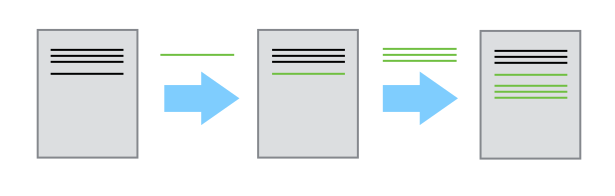
Changes are saved sequentially.
Once you think of changes as separate from the document itself, you can then think about “playing back” different sets of changes on the base document, ultimately resulting in different versions of that document. For example, two researchers can work on independent sets of changes on a bioinformatics pipeline. One could be working on the quality filtering step, and the other working on differential expression.
Version control lets everyone work independently and merge their contributions together, while keeping a complete history of who changed what and why.
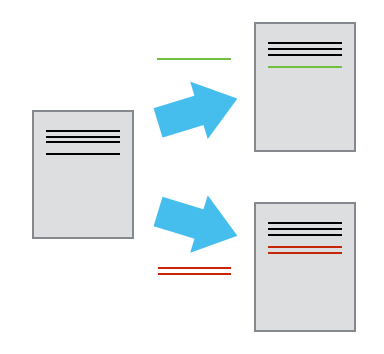
Different versions can be saved.
Unless there are conflicts, you can even incorporate two sets of changes into the same base document.
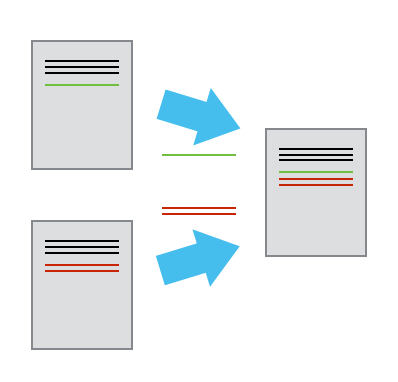
Multiple versions can be merged.
A version control system is a tool that keeps track of these changes for us, effectively creating different versions of our files. It allows us to decide which changes will be made to the next version (each record of these changes is called a “commit”, and keeps useful metadata about them. The complete history of commits for a particular project and their metadata make up a “repository”. Repositories can be kept in sync across different computers, facilitating collaboration among different people.
Setting up Git
Connect to your course VM using VSCode (see the VSCode setup instructions if you haven’t already). Open the integrated terminal in VSCode and check which version of Git is installed:
$ which git
/usr/bin/git
$ git --version
git version 2.x.x
When we use Git on a new computer for the first time, we need to configure a few things. Below are a few examples of configurations we will set as we get started with Git:
Our name and email address,
And that we want to use these settings globally (i.e. for every project).
On a command line, Git commands are written as git verb, where verb is
what we actually want to do. Here is how we set up our environment:
[mbs-337]$ git config --global user.name "Kelsey Beavers"
[mbs-337]$ git config --global user.email "kbeavers@tacc.utexas.edu"
Please use your own name and email address associated with your GitHub account. This user name and email will be connected with your subsequent Git activity, which means that any changes pushed to GitHub or another Git host server in the future will include this information.
Tip
A key benefit of Git is that it is platform agnostic. You can use it equally to interact with the same files from your laptop, from a lab computer, or from a cluster.
Create a New Repository on the Command Line
First, let’s navigate to our home directory and create a folder for this class and for working with Git (if you haven’t done it already):
[mbs-337]$ cd ~
[mbs-337]$ mkdir mbs-337  # skip if you have this already
[mbs-337]$ cd mbs-337
[mbs-337]$ mkdir my-first-git-repo
[mbs-337]$ cd my-first-git-repo/
[mbs-337]$ pwd
/home/ubuntu/mbs-337/my-first-git-repo
Then we will use a Git command to initialize this directory as a new Git repository - or a place where Git can start to organize versions of our files.
[mbs-337]$ git init
Initialized empty Git repository in /home/ubuntu/mbs-337/my-first-git-repo/.git/
Note
You may see a hint message about the default branch name. It’s now common practice
to use main instead of master as the default branch name. You can configure Git
to use main as the default for all new repositories:
$ git config --global init.defaultBranch main
You can also rename the branch we just created from master to main:
$ git branch -m main
If we use ls -a, we can see that Git has created a hidden directory called
.git:
[mbs-337]$ ls -a
./  ../  .git/
Use the find command to get an overview of the contents of the .git/
directory:
[mbs-337]$ find .git/
.git/
.git/info
.git/info/exclude
.git/branches
.git/refs
.git/refs/tags
.git/refs/heads
.git/description
.git/objects
.git/objects/info
.git/objects/pack
.git/config
.git/HEAD
.git/hooks
.git/hooks/update.sample
.git/hooks/commit-msg.sample
.git/hooks/fsmonitor-watchman.sample
.git/hooks/pre-merge-commit.sample
.git/hooks/sendemail-validate.sample
.git/hooks/pre-commit.sample
.git/hooks/pre-rebase.sample
.git/hooks/pre-applypatch.sample
.git/hooks/pre-push.sample
.git/hooks/pre-receive.sample
.git/hooks/applypatch-msg.sample
.git/hooks/prepare-commit-msg.sample
.git/hooks/post-update.sample
.git/hooks/push-to-checkout.sample
Git uses this special sub-directory to store all the information about the
project, including all files and sub-directories located within the project’s
directory. If we ever delete the .git sub-directory, we will lose the
project’s history. We can check that everything is set up correctly by asking
Git to tell us the status of our project:
[mbs-337]$ git status
On branch main

No commits yet

nothing to commit (create/copy files and use "git add" to track)
As you see, there is “nothing to commit” because there are no files in here to track. To make things more interesting, let’s copy in a few of the Python scripts we were working on (or any other files) and check the status again:
[mbs-337]$ cp ~/mbs-337/function_test.py .
[mbs-337]$ git status
On branch main

No commits yet

Untracked files:
(use "git add <file>..." to include in what will be committed)
      function_test.py

nothing added to commit but untracked files present (use "git add" to track)
Note
If you are using a different version of git, the exact wording of the
output might be slightly different.
Tracking Changes
We will use this repository to track some changes we are about to make to our
example Python scripts. Above, Git mentioned that it found one
“Untracked file”. This means there are files in this current directory that Git
isn’t keeping track of. We can instruct Git to start tracking a file using
git add:
[mbs-337]$ git add function_test.py
[mbs-337]$ git status
On branch main

No commits yet

Changes to be committed:
(use "git rm --cached <file>..." to unstage)
      new file:   function_test.py
Commit Changes to the Repo
Git now knows that it’s supposed to keep track of function_test.py, but it
hasn’t recorded these changes as a commit yet. To get it to do that, we need to
run one more command:
[mbs-337]$ git commit -m "start tracking first Python script"
[main (root-commit) 1232976] start tracking first Python script
1 file changed, 6 insertions(+)
create mode 100644 function_test.py
When we run git commit, Git takes everything we have told it to save by
using git add and stores a copy permanently inside the special .git
directory. This permanent copy is called a “commit” (or “revision”) and its
short identifier is 35af307. Your commit may have another identifier.
We use the -m flag (“m” for “message”) to record a short, descriptive, and
specific comment that will help us remember later on what we did and why. Good
commit messages start with a brief (<50 characters) statement about the changes
made in the commit. Generally, the message should complete the sentence “If
applied, this commit will” <commit message here>. If you want to go into more
detail, add a blank line between the summary line and your additional notes. Use
this additional space to explain why you made changes and/or what their impact
will be.
If we run git status now:
[mbs-337]$ git status
On branch main
nothing to commit, working tree clean
There are no more untracked files in our current working directory, and no changes to commit.
EXERCISE
Create a new file in your current directory called python_test_1.py.
Then do a git add <file> followed by a git commit -m "descriptive message"
for the untracked file. Also do a git status in between each command.
Check the Project History
If we want to know what we’ve done recently, we can ask Git to show us the
project’s history using git log:
[mbs-337]$ git log
commit fb121f41e3dd04799aee1c92f9e50c31e6f298b4 (HEAD -> main)
Author: Kelsey Beavers <kbeavers@tacc.utexas.edu>
Date:   Mon Jan 19 23:27:03 2026 +0000

   added second python script

commit 123297663d17fe68685b4b8d2172c62be05a7701
Author: Kelsey Beavers <kbeavers@tacc.utexas.edu>
Date:   Mon Jan 19 23:25:56 2026 +0000

   start tracking first Python script
The command git log lists all commits made to a repository in reverse
chronological order. The listing for each commit includes:
the commit’s full identifier (which starts with the same characters as the short identifier printed by the
git commitcommand earlier),the commit’s author,
when it was created,
and the log message Git was given when the commit was created.
Making Further Changes
Now suppose we make a change to one of the files we are tracking. Open the
python_test_1.py script and add some random comments into the script:
When we run git status now, it tells us that a file it is tracking
has been modified:
[mbs-337]$ git status
On branch main
Changes not staged for commit:
   (use "git add <file>..." to update what will be committed)
   (use "git restore <file>..." to discard changes in working directory)
      modified:   python_test_1.py

no changes added to commit (use "git add" and/or "git commit -a")
The last line is the key phrase: “no changes added to commit”. We have changed
this file, but we haven’t told Git we will want to save those changes (which we
do with git add) nor have we saved them (which we do with git commit).
So let’s do that now. It is good practice to always review our changes before
saving them. We do this using git diff. This shows us the differences
between the current state of the file and the most recently saved version:
[mbs-337]$ git diff python_test_1.py
diff --git a/python_test_1.py b/python_test_1.py
index e69de29..e42b721 100644
--- a/python_test_1.py
+++ b/python_test_1.py
@@ -0,0 +1 @@
+# Function to calculate GC content:
\ No newline at end of file
The output is cryptic because it is actually a series of commands for tools like
editors and patch telling them how to reconstruct one file given the other.
If we break it down into pieces:
The first line tells us that Git is producing output similar to the Unix
diffcommand comparing the old and new versions of the file.The second line tells exactly which versions of the file Git is comparing:
e69de29ande42b721are unique computer-generated labels for those versions.The third and fourth lines once again show the name of the file being changed.
---marks the old version, and+++marks the new version.The remaining lines are the most interesting, they show us the actual differences and the lines on which they occur. In particular, the
+marker shows where we added lines.
After reviewing our change, it’s time to commit it:
[mbs-337]$ git add python_test_1.py
[mbs-337]$ git commit -m "added a descriptive comment"
[main 05277bf] added a descriptive comment
1 file changed, 1 insertion(+)
[mbs-337]$ git status
On branch main
nothing to commit, working directory clean
Git requires that you explicitly stage files with git add before committing them.
This two-step process (staging, then committing) gives you control over which changes
to include in each commit. You can group related changes together while leaving
unfinished work uncommitted. For example, suppose we’re adding a few citations to relevant
research to our thesis. We might want to commit those additions, and the corresponding
bibliography entries, but not commit some of our work drafting the conclusion
(which we haven’t finished yet).
Restoring Old Versions of Files
We can save changes to files and see what we’ve changed — now how can we restore older versions of things? Let’s suppose we accidentally overwrite our file:
[mbs-337]$ echo "" > python_test_1.py
[mbs-337]$ cat python_test_1.py
Now git status tells us that the file has been changed, but those changes
haven’t been staged:
[mbs-337]$ git status
On branch main
Changes not staged for commit:
   (use "git add <file>..." to update what will be committed)
   (use "git restore <file>..." to discard changes in working directory)
      modified:   python_test_1.py

no changes added to commit (use "git add" and/or "git commit -a")
We can put things back the way they were by using git checkout and referring
to the most recent commit of the working directory by using the identifier
HEAD:
[mbs-337]$ git checkout HEAD python_test_1.py
Updated 1 path from a937217
[mbs-337]$ cat python_test_1.py
# Function to calculate GC content:
As you might guess from its name, git checkout checks out (i.e., restores)
an old version of a file. In this case, we’re telling Git that we want to
recover the version of the file recorded in HEAD, which is the last saved
commit. If we want to go back even further, we can use a commit identifier
instead:
[mbs-337]$ git log
commit 05277bfe40c00448169c760966f79c5a39622b04 (HEAD -> main)
Author: Kelsey Beavers <kbeavers@tacc.utexas.edu>
Date:   Mon Jan 19 23:31:07 2026 +0000

   added a descriptive comment

commit fb121f41e3dd04799aee1c92f9e50c31e6f298b4
Author: Kelsey Beavers <kbeavers@tacc.utexas.edu>
Date:   Mon Jan 19 23:27:03 2026 +0000

   added second python script

commit 123297663d17fe68685b4b8d2172c62be05a7701
Author: Kelsey Beavers <kbeavers@tacc.utexas.edu>
Date:   Mon Jan 19 23:25:56 2026 +0000

   start tracking first Python script
[mbs-337]$ git checkout fb121f python_test_1.py
# now you have a copy of python_test_1.py without that comment we added
Again, we can put things back the way they were by using git checkout:
[mbs-337]$ git checkout HEAD python_test_1.py
# back to the most recent version
Directories in Git
There are a couple important facts you should know about directories in Git. First, Git does not track directories on their own, only files within them. Try it for yourself:
[mbs-337]$ mkdir directory
[mbs-337]$ git status
[mbs-337]$ git add directory
[mbs-337]$ git status
Note, our newly created empty directory directory does not appear in the
list of untracked files even if we explicitly add it (via git add) to our
repository.
Second, if you create a directory in your Git repository and populate it with files, you can add all files in the directory at once by:
[mbs-337]$ git add <directory-with-files>
Tip
A trick for tracking an empty directory with Git is to add a hidden file to
the directory. People sometimes will label this .gitcanary. Adding and
committing that file to the repo’s history will cause the directory it is in
to also be tracked.
Summing Up
To summarize the first Git module, the commands we covered were:
git config     # Get and set repository or global options
git init       # Create an empty Git repository or reinitialize an existing one
git status     # Show the working tree status
git add        # Add file contents to the index
git commit     # Record changes to the repository
git diff       # Show changes between commits, commit and working tree, etc
git log        # Show commit logs
git checkout   # Checkout a branch or paths to the working tree
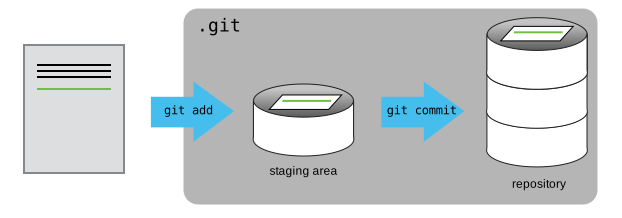
The key takeaway is the general workflow of making some changes => git add
=> git commit. If you think of Git as taking snapshots of changes over the
life of a project, git add specifies what will go in a snapshot (putting
things in the staging area), and git commit actually takes the snapshot, and
makes a permanent record of it (as a commit).
Additional Resources
Some of the materials in this module were based on Software Carpentry DOI: 10.5281/zenodo.57467.
Many of the materials in this module were adapted from COE 332: Software Engineering & Design